 touchretouch
TOUCHRETOUCH.ONLINE · INDEPENDENT GUIDE
Change Photo Backgrounds Online: Cutout, Replace or Blur
Remove the background entirely, replace it with a photo, describe a new setting or soften what is already there. These are four different tasks. Decide what should happen behind your subject, then choose the matching tool.
Try this edit online ↗Choose what happens behind your subject
Remove background creates a transparent PNG. Use a background photo combines your selected subject with an image. Replace background generates a setting from words. Blur background softens the existing scene while the selected subject stays sharp.
Refine the subject outline
Click-select or paint the subject to keep, then inspect hair, clothes and held objects. Automatic selection can miss parts. A local composite also needs a background that suits the subject's lighting and perspective.
How to get started
- Upload a photo and choose the background tool for your goal.
- Click-select the subject or paint the area to keep.
- Refine its outline and add a background image or description when required.
- Apply the edit, inspect the edges and download the result.
RESULTS FROM OUR EDITOR
Explore the edits before choosing
These are recorded touchretouch.online results, not demonstrations of the official TouchRetouch app.
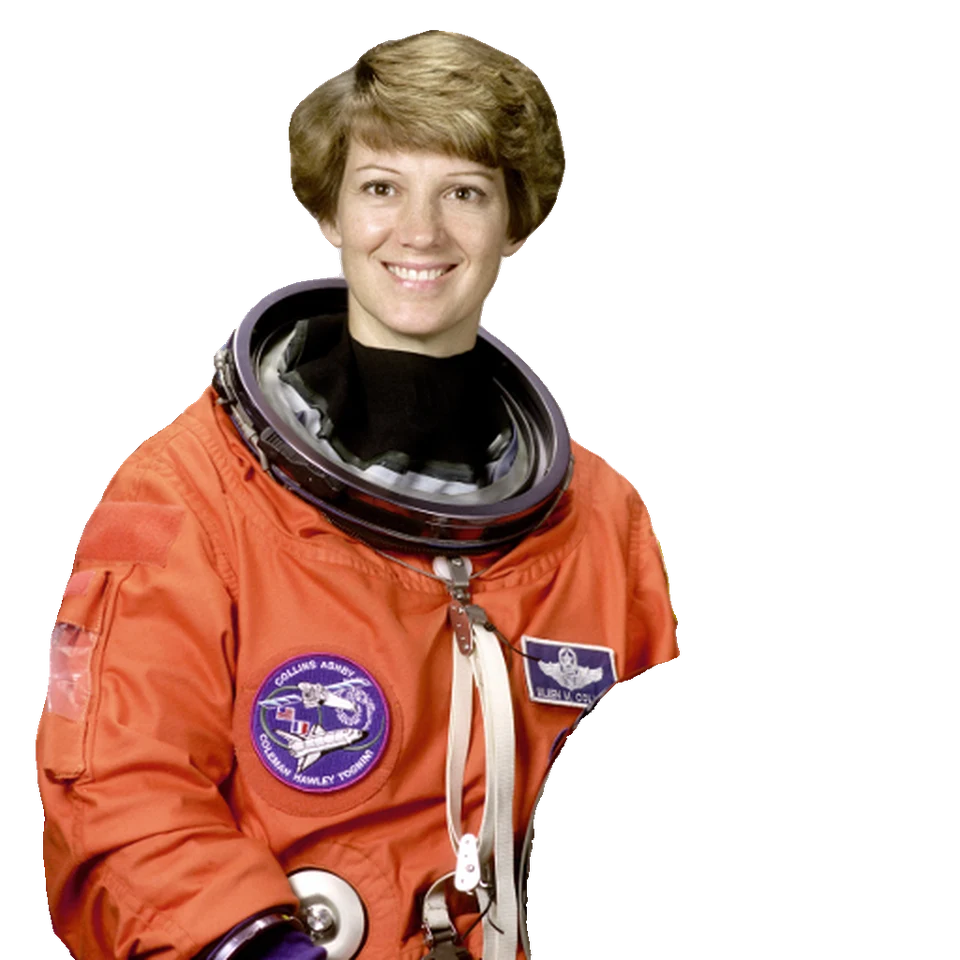
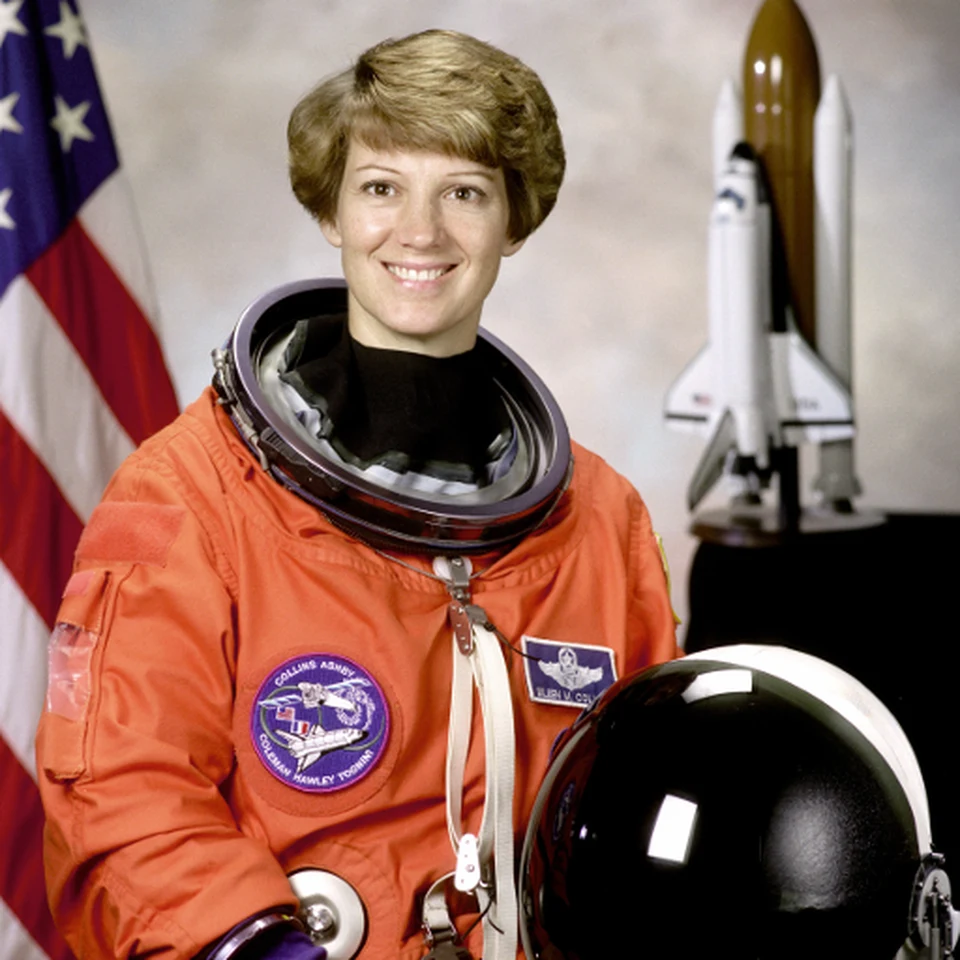 BeforeAfter
A transparent cutout
Actual local result. This selection misses the held helmet; refine the mask for a complete cutout.
Open this tool ↗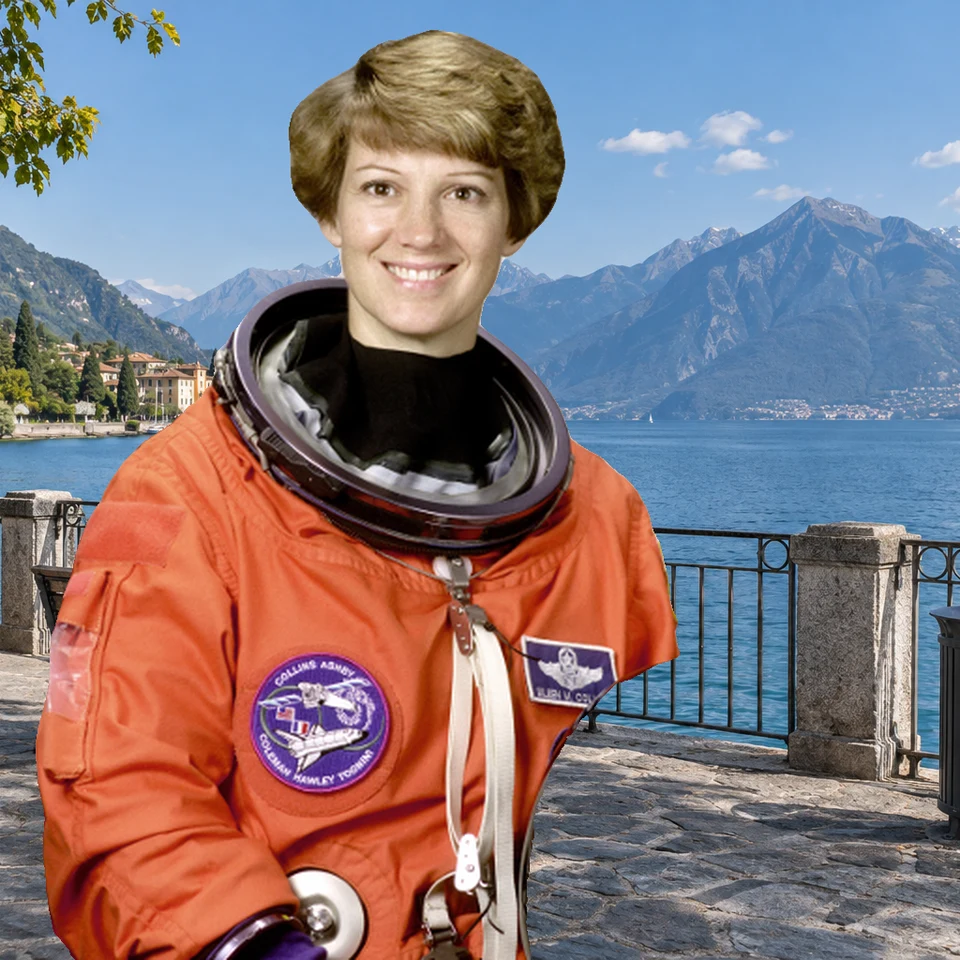
 BeforeAfter
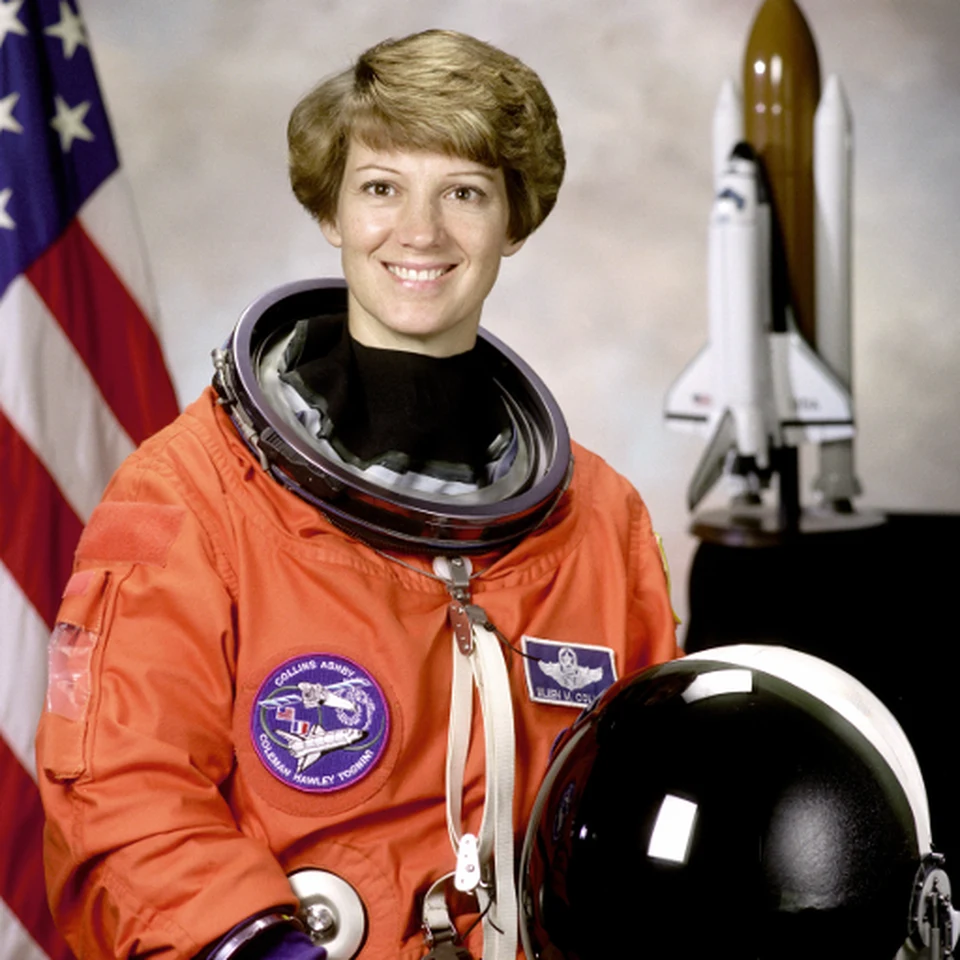
Use another photo behind the subject
Actual local composite with a synthetic lake background. Check the outline and lighting match.
Open this tool ↗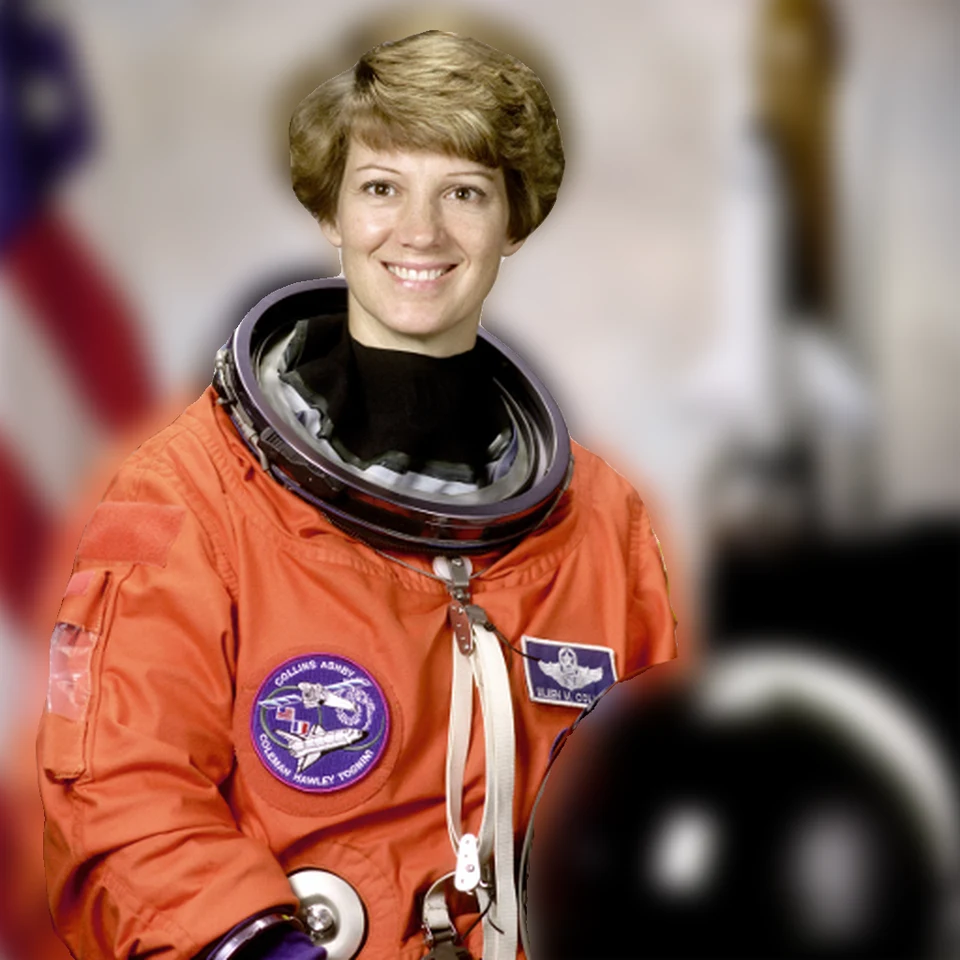
 BeforeAfter
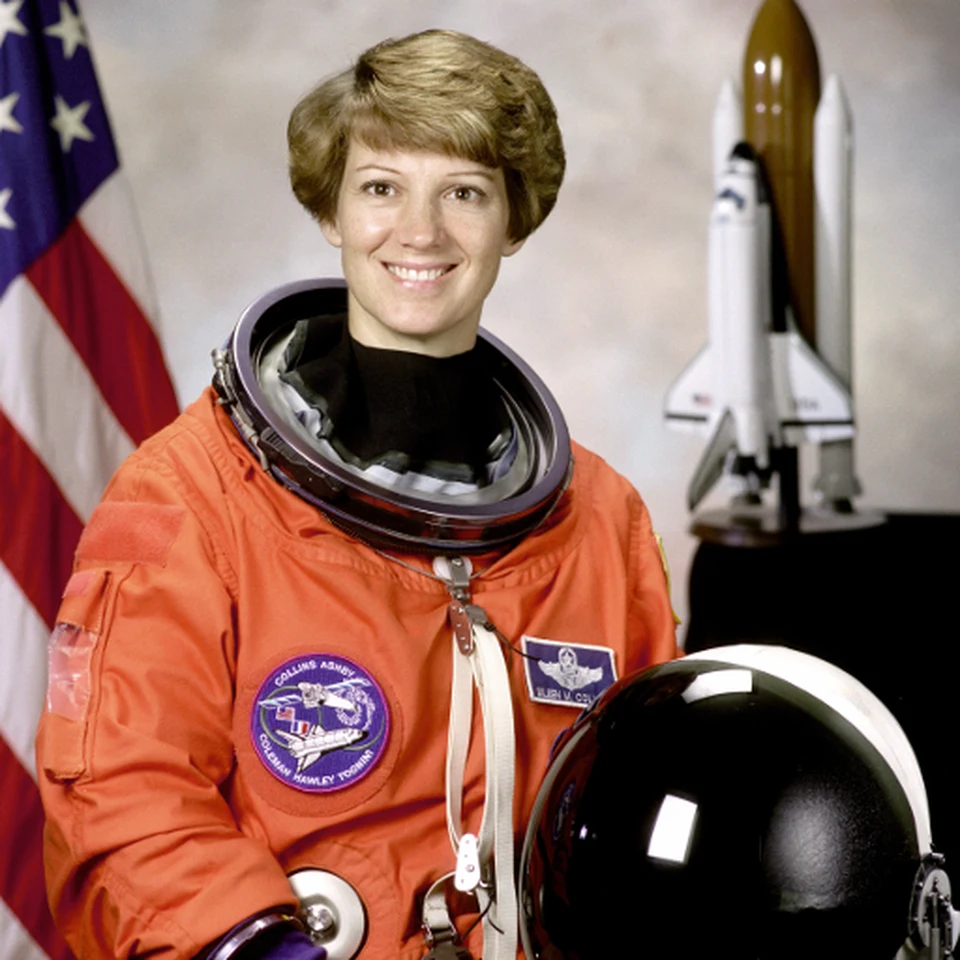
Keep the selected subject sharp
Actual local blur. The selection determines which parts stay sharp.
Open this tool ↗GOOD TO KNOW
Frequently asked questions
Which tool makes a transparent background?
Use Remove background and download the PNG. AI Replace background creates a new visible scene instead.
Can I upload my own background?
Yes. Choose Use a background photo, select the subject to keep and supply a background image.
Does background blur upload my photo for AI generation?
The local background-blur tool runs on your device without a generation request. AI background replacement is a separate uploaded processing workflow.
FIND YOUR NEXT EDIT
TouchRetouch questions & photo editing guides
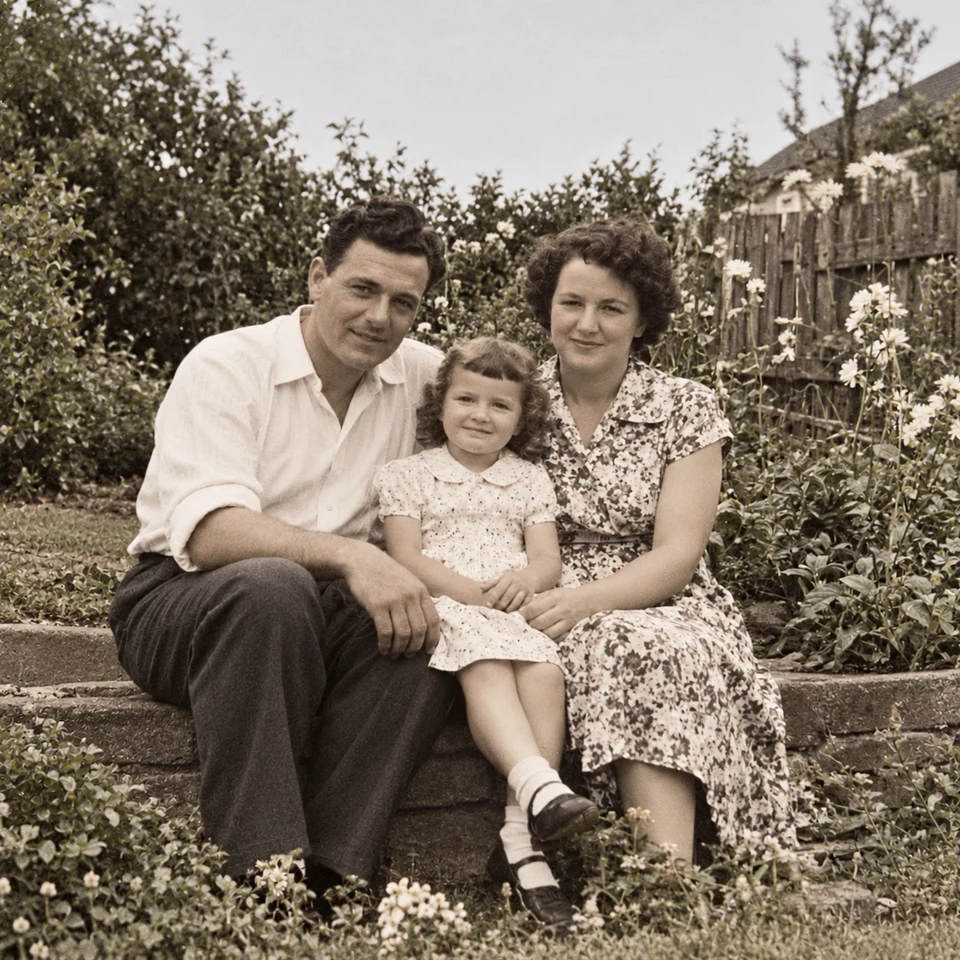
Remove People from Photos Online: A Practical Guide
Remove background people or select one photobomber in a photo. Learn which tool to use, who to protect and which details to check before downloading the edit.
Read the guide ↗Remove Wires & Fences from Photos Online: Tool Guide
Choose wire removal, mesh removal or a manual selection for cables and fences. Compare recorded examples and check crossings, edges and reconstructed detail.
Read the guide ↗Change Photo Backgrounds Online: Cutout, Replace or Blur
Choose a transparent cutout, your own background photo, an AI setting or background blur. Learn how to select the subject and inspect edges before saving.
Read the guide ↗TouchRetouch Guide: App, Online Options & How to Use It
Learn what TouchRetouch does, where to find the official app and how browser editing differs. Explore an independent online option with recorded photo examples.
Read the guide ↗TouchRetouch for PC & Mac: Official Options and Browser Editing
Looking for TouchRetouch on a computer? Check the official Mac compatibility, distinguish Windows emulator guides and try an independent browser editing workflow.
Read the guide ↗A TouchRetouch Online Alternative: Compare Editing Workflows
Compare the TouchRetouch app with an independent browser workflow for object removal, backgrounds and local tools. See real examples, limits and billing differences.
Read the guide ↗