
 BeforeAfter
Select a small object
The spoon-removal test demonstrates a precise selection. Inspect the saucer edge and surface.
Explore this tool ↗ touchretouch.online
Early access · Local editing tools are ready to use. AI tools show recorded examples; new AI edits, accounts and payments are coming later.
THE PHOTO STUDIO
BeforeAfterSelect distractions to remove.
Arrow keys move the selection cursor. Space paints; Enter closes a lasso; Escape cancels. B brush, L lasso, I line, E erase. Zoom in, then use the hand button to pan. Fit resets the view.
A cup, sign or passing stranger can draw attention away from the subject. Mark the part you want to change and ask AI to fill the area. It helps when cropping would cut away too much of the scene. The fill is generated: review its texture and edges before saving.
Mark a specific object manually. For background bystanders, describe the main people to keep. Try the wire or mesh tool for cables and fences. Use Clone stamp to copy a small matching patch from a source point.
Look for leftover shadows, repeated texture, bent lines and changes to faces or text. Restore original detail can bring selected pixels back from the original working photo; it cannot reveal a hidden background.
BeforeAfterThe spoon-removal test demonstrates a precise selection. Inspect the saucer edge and surface.
Explore this tool ↗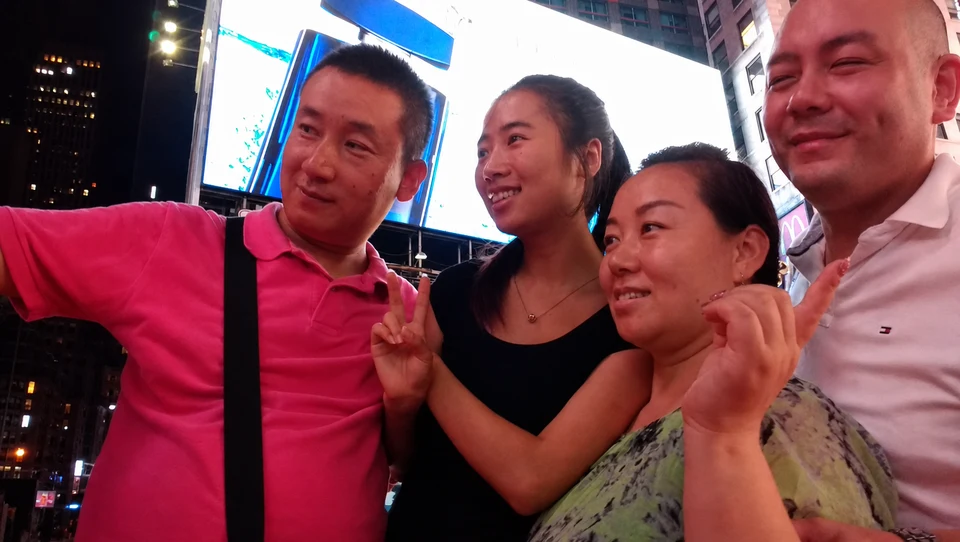
 BeforeAfter
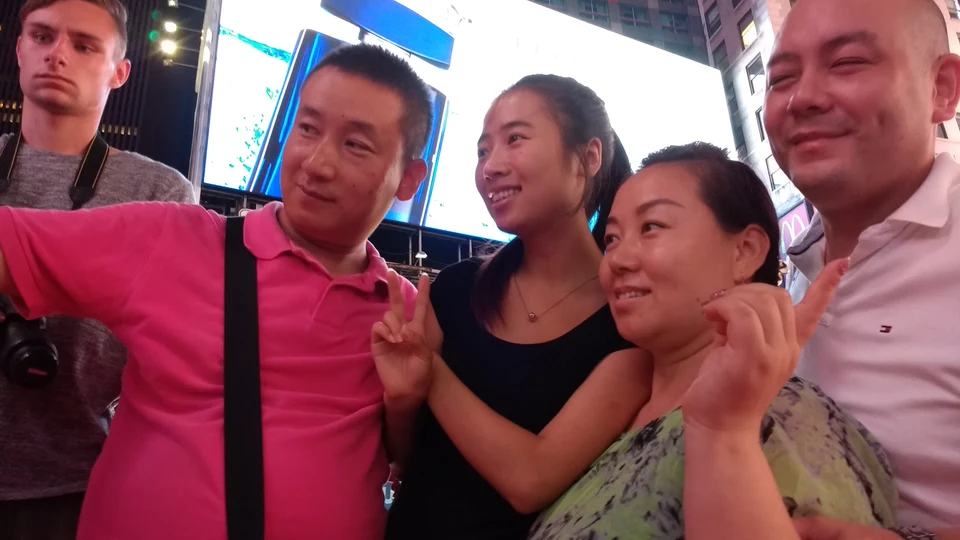
Compare the retained main subjects as well as the cleared background.
Explore this tool ↗
 BeforeAfter
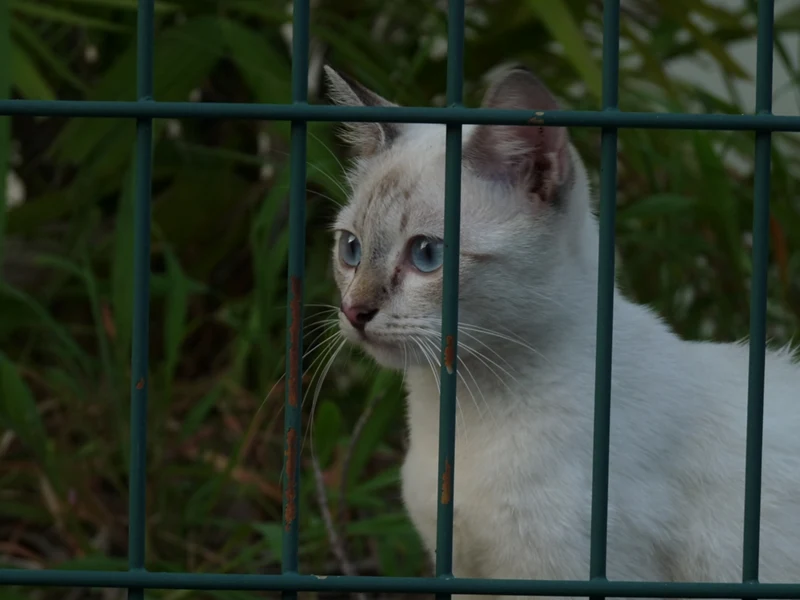
Hidden detail is generated, not recovered from an unobstructed original.
Explore this tool ↗Brush follows irregular shapes and thin edges. Lasso surrounds a larger area. Both create a selection you can refine before submitting.
Select that person manually. Where people overlap, AI reconstructs covered areas and may affect people you want to keep. Review faces, hands and clothing.
AI creates replacement pixels from the surrounding scene. Complex patterns, shadows and large hidden regions may not blend convincingly. Try a tighter selection or a different tool.
No. It displays the before-and-after images. Moving the comparison does not submit an AI request.
FIND YOUR NEXT EDIT
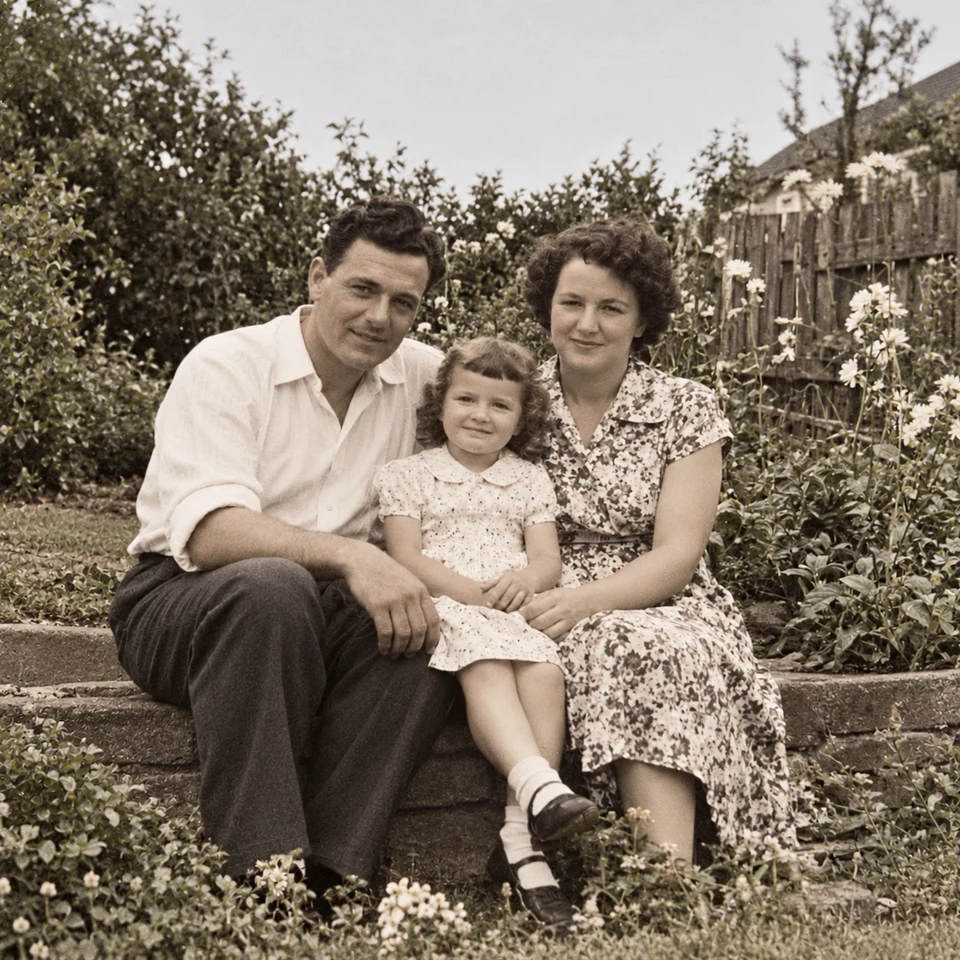
Remove background people or select one photobomber in a photo. Learn which tool to use, who to protect and which details to check before downloading the edit.
Read the guide ↗Choose wire removal, mesh removal or a manual selection for cables and fences. Compare recorded examples and check crossings, edges and reconstructed detail.
Read the guide ↗Choose a transparent cutout, your own background photo, an AI setting or background blur. Learn how to select the subject and inspect edges before saving.
Read the guide ↗Learn what TouchRetouch does, where to find the official app and how browser editing differs. Explore an independent online option with recorded photo examples.
Read the guide ↗Looking for TouchRetouch on a computer? Check the official Mac compatibility, distinguish Windows emulator guides and try an independent browser editing workflow.
Read the guide ↗Compare the TouchRetouch app with an independent browser workflow for object removal, backgrounds and local tools. See real examples, limits and billing differences.
Read the guide ↗