 BeforeAfter
Keep the people who matter.
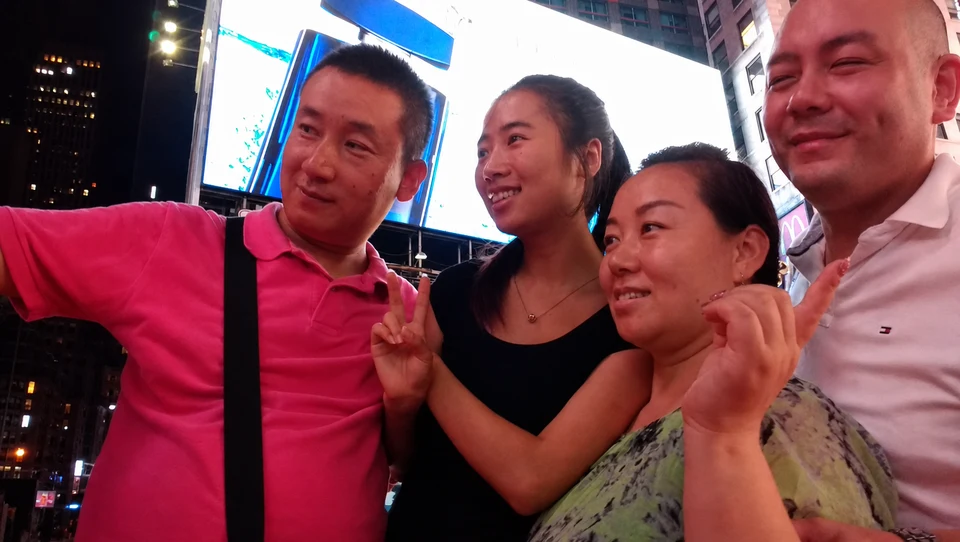
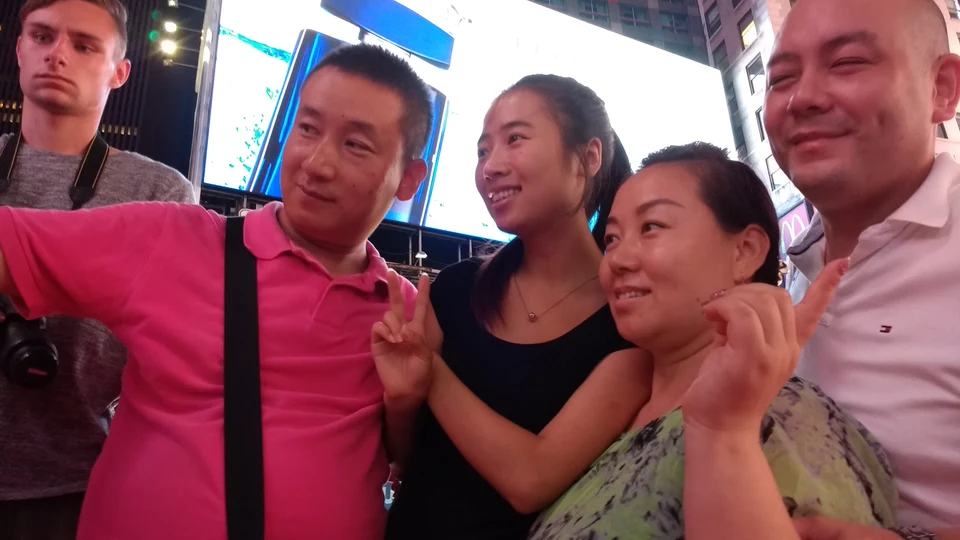
Describe the main subjects to keep. Compare their faces and clothing as well as the cleared background.
Open this example ↗ touchretouch.online
Early access · Local editing tools are ready to use. AI tools show recorded examples; new AI edits, accounts and payments are coming later.
YOUR PHOTO. FEWER DISTRACTIONS.
Remove distractions, tidy a busy background or try a new look. Choose a tool, make your change and compare the result—all in your browser.
Remove distractions. Replace backgrounds. Keep creating.
 BeforeAfter
WHAT IS TOUCHRETOUCH.ONLINE?
touchretouch.online is an independent browser photo editor for everyday cleanup and creative edits. Remove unwanted objects, create a transparent cutout or describe a new setting. Eighteen tools share one workspace.
Looking for TouchRetouch by ADVA Soft? That is a separate app. Our TouchRetouch guide explains the app, official sources and browser alternatives.
WHY EDIT HERE?
Mark a specific distraction, describe a broader AI edit, or use local tools for blur and cloning. Every tool has a recorded comparison to explore before you start.
Cleanup, cutouts and background changes stay together in your browser. Compare your own result, inspect the edges and download a separate copy.
TouchRetouch is ADVA Soft’s photo-editing app. If you are looking for its official download, platform support or tutorials, our guide points you to the right sources. If you would rather edit in a browser, explore this independent editor. The two products use separate accounts and billing.
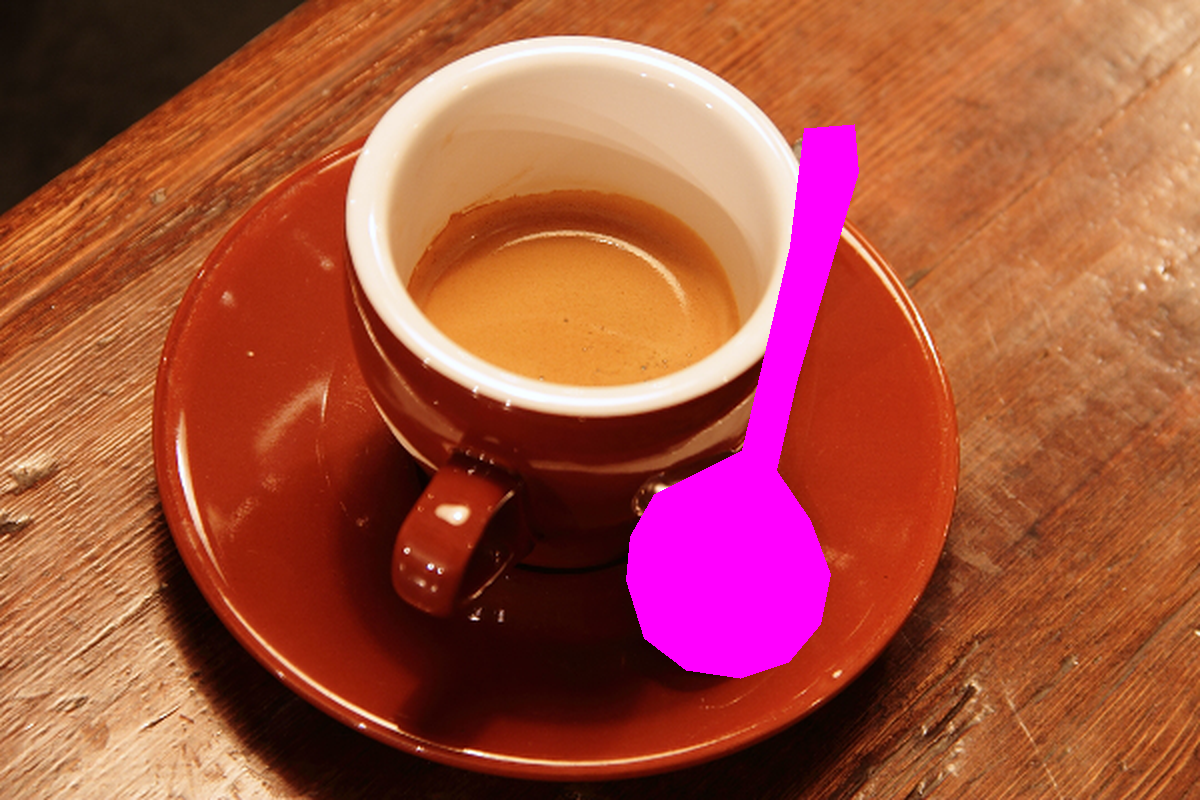
Start with a JPG or PNG. Your original stays yours.
Brush an area, add instructions or provide a reference photo for your chosen tool.
Check the full result before saving a copy.
LOOK A LITTLE CLOSER
Real test photos. Real edits. Move across a photo to compare.
BeforeAfterDescribe the main subjects to keep. Compare their faces and clothing as well as the cleared background.
Open this example ↗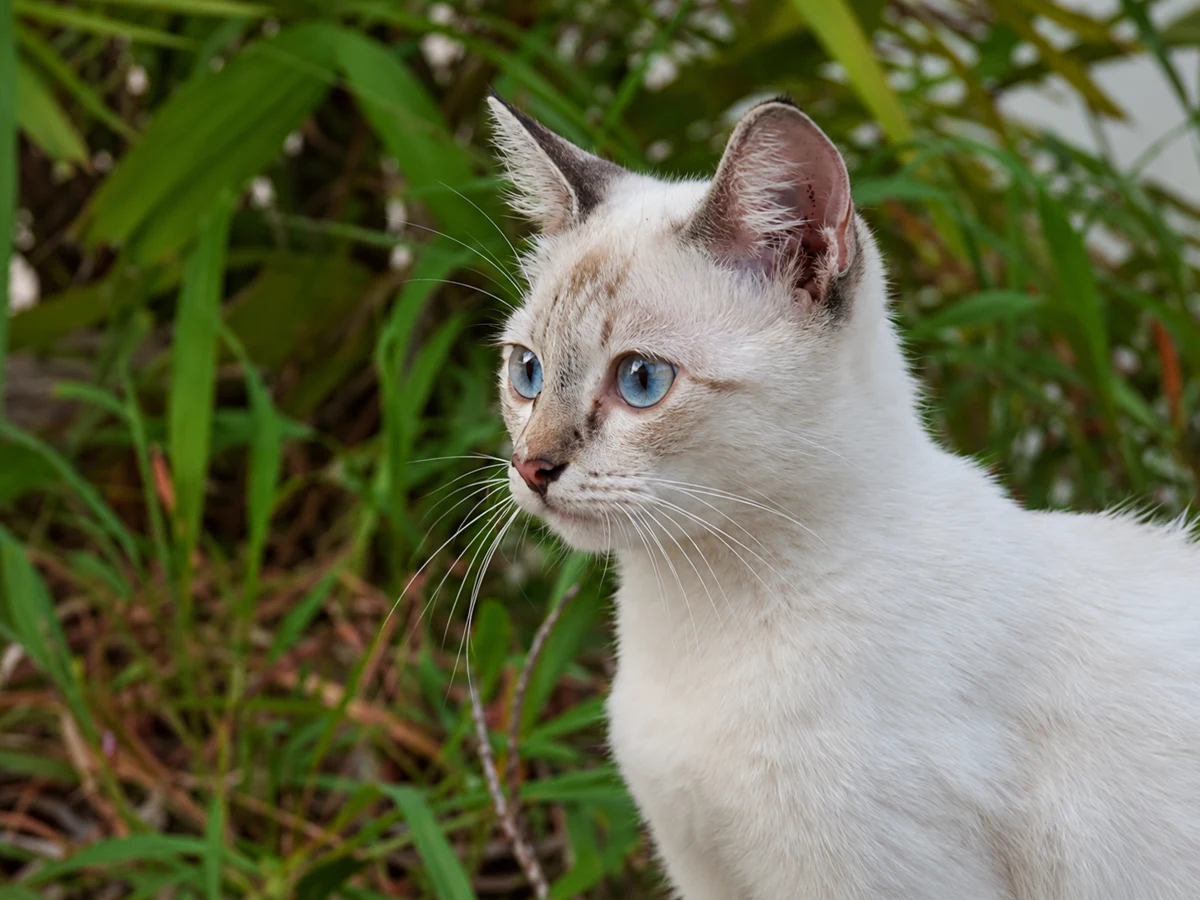
 BeforeAfter
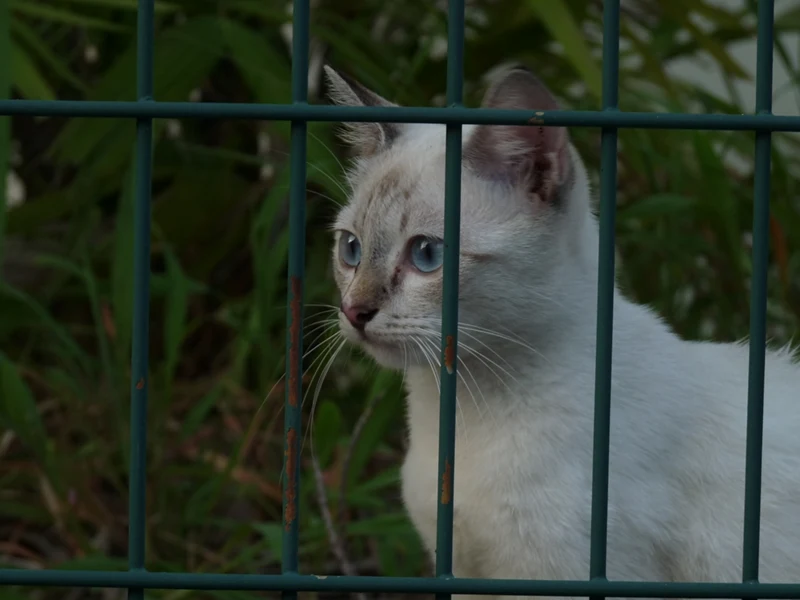
Remove a foreground fence and let AI reconstruct the scene behind it. Hidden details are newly generated.
Open this example ↗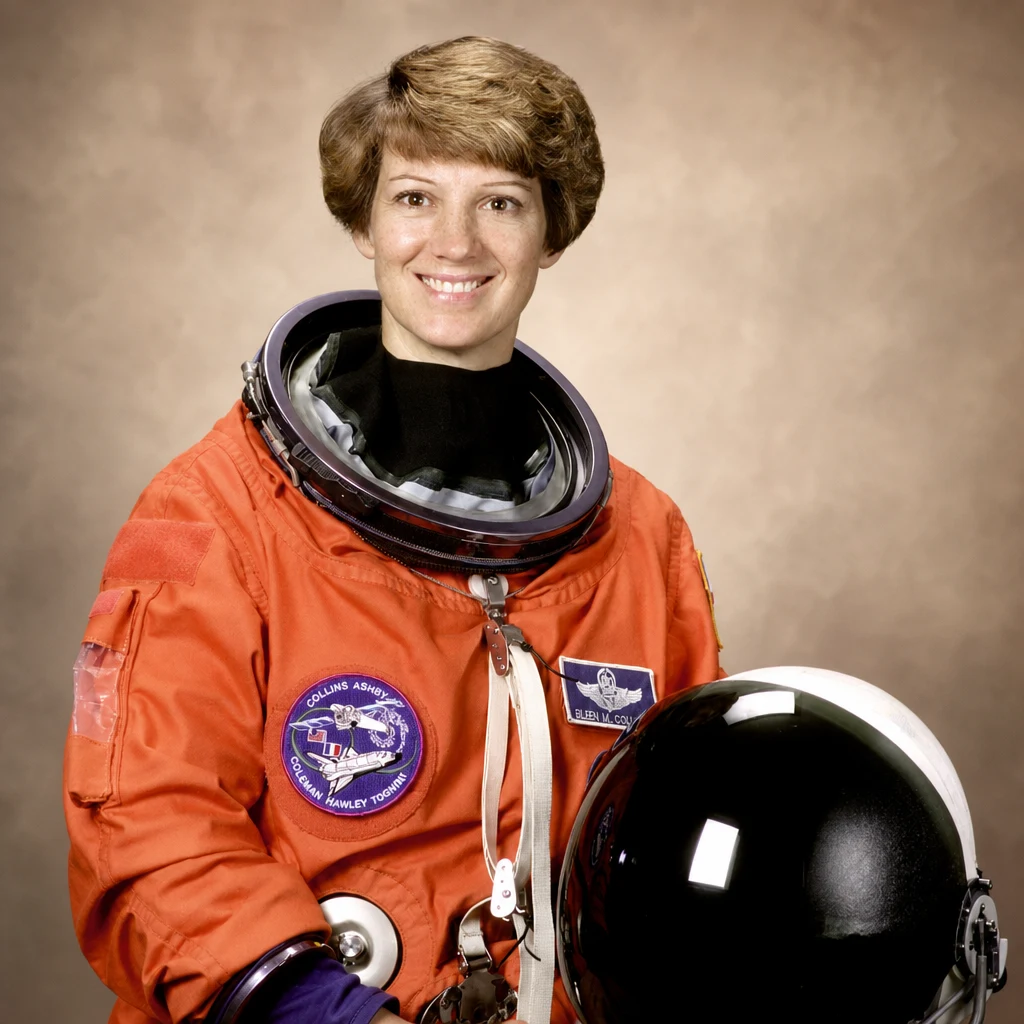
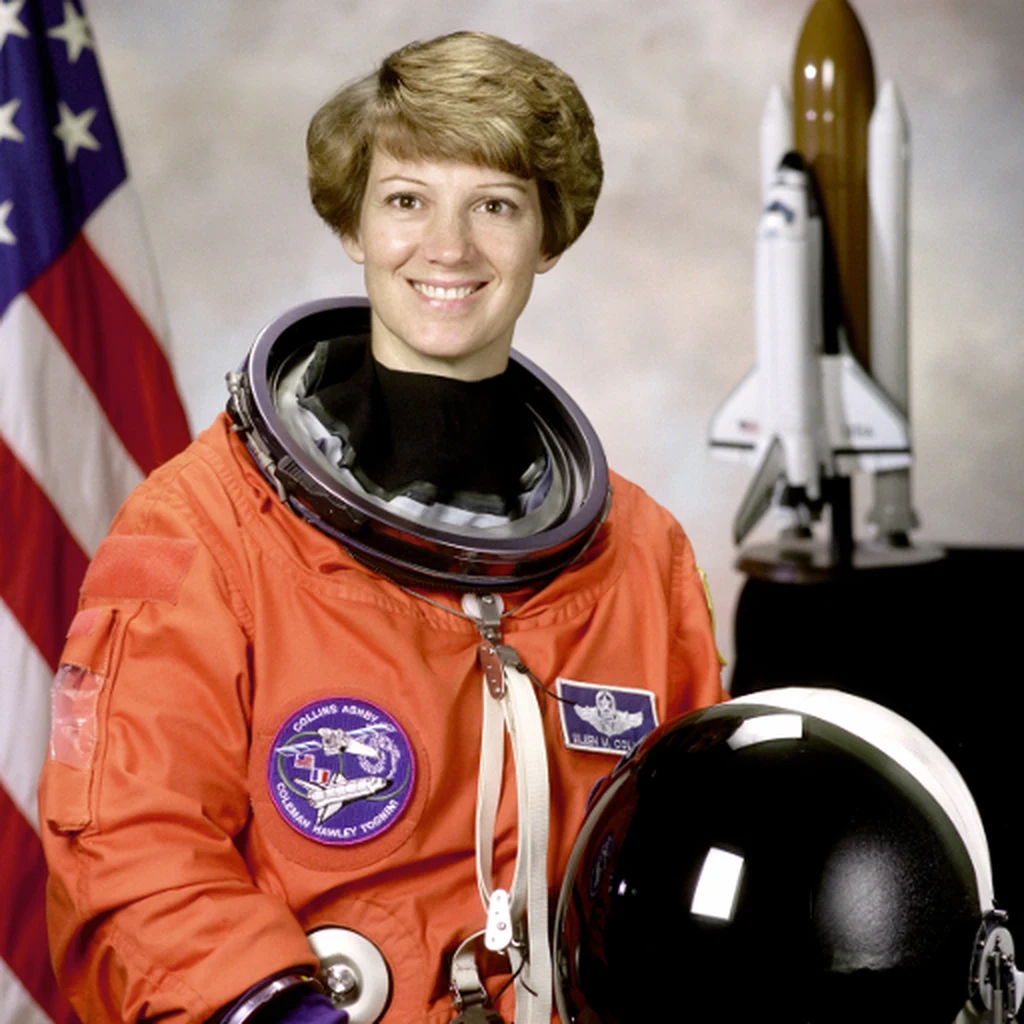 BeforeAfter
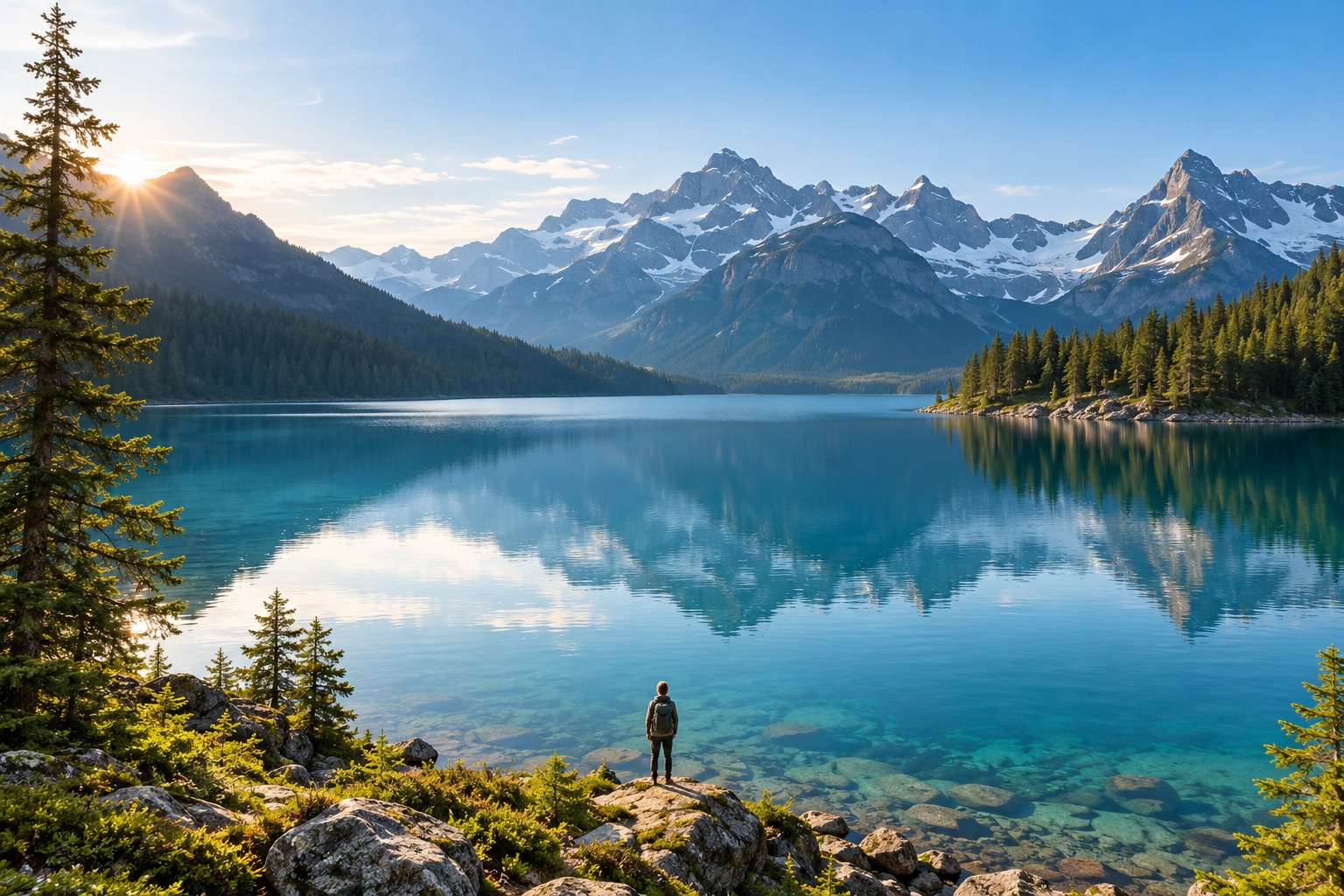
Select your subject and describe a new background. Check faces, edges and fine details before saving.
Open this example ↗Recorded AI results; each photo is different. Photo credits & sources
EVERYDAY REASONS TO EDIT
Everyday editing scenarios, illustrated below. See the recorded comparisons above for actual results.

Remove a background bystander or a stray object. Keep the main people and check nearby buildings and textures.
Explore people removal ↗
Make a transparent cutout, add your own background photo or blur a busy setting. Refine hair and held objects.
Explore background tools ↗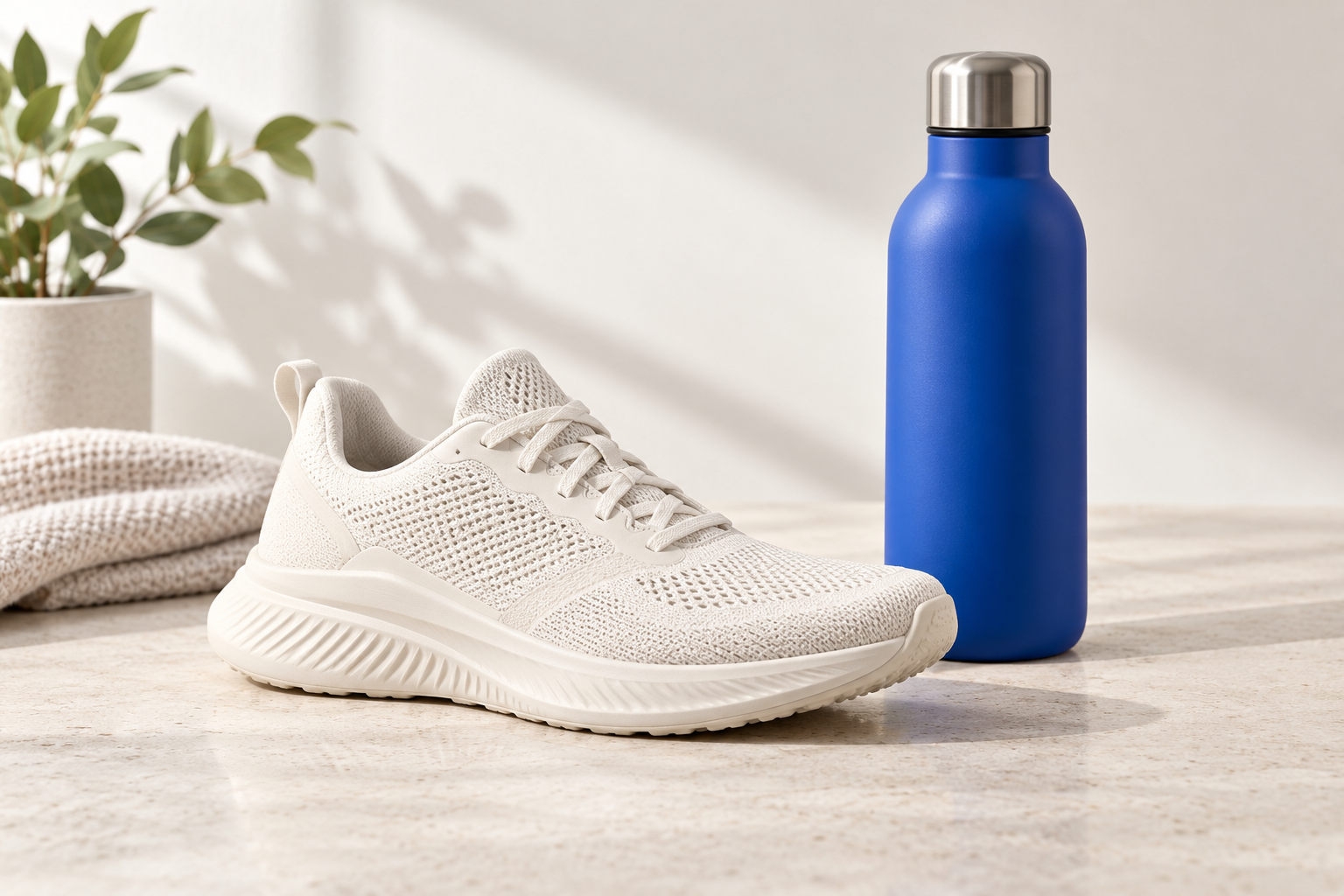
Clean a distraction, clone a matching patch or restore original details after editing. Review labels, shape and colour.
Try Clone stamp ↗FIND YOUR NEXT EDIT
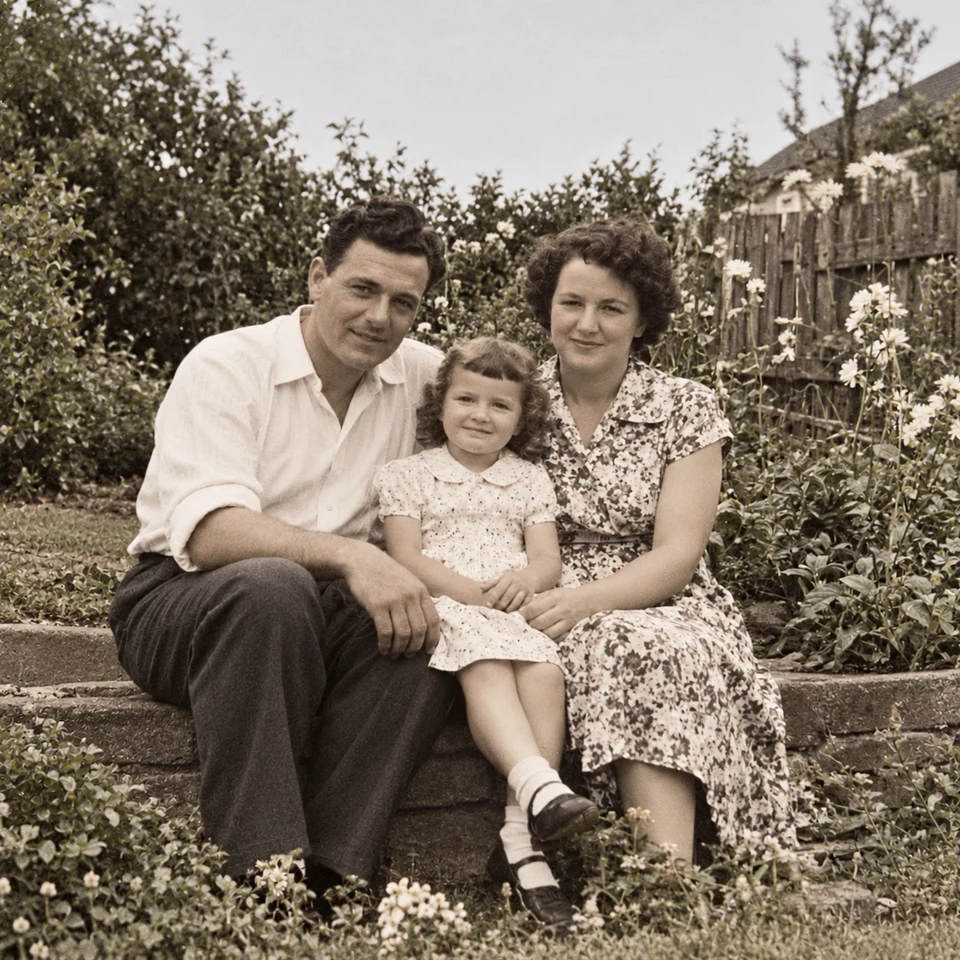
Remove background people or select one photobomber in a photo. Learn which tool to use, who to protect and which details to check before downloading the edit.
Read the guide ↗Choose wire removal, mesh removal or a manual selection for cables and fences. Compare recorded examples and check crossings, edges and reconstructed detail.
Read the guide ↗Choose a transparent cutout, your own background photo, an AI setting or background blur. Learn how to select the subject and inspect edges before saving.
Read the guide ↗Learn what TouchRetouch does, where to find the official app and how browser editing differs. Explore an independent online option with recorded photo examples.
Read the guide ↗Looking for TouchRetouch on a computer? Check the official Mac compatibility, distinguish Windows emulator guides and try an independent browser editing workflow.
Read the guide ↗Compare the TouchRetouch app with an independent browser workflow for object removal, backgrounds and local tools. See real examples, limits and billing differences.
Read the guide ↗A FEW GOOD QUESTIONS
AI can change nearby details.
Always review before you download.
No. touchretouch.online is an independent browser editor. TouchRetouch is a separate app from ADVA Soft; purchases and subscriptions for that app do not apply here.
Yes, open this editor in a browser on your computer. This is a separate web service, not a Windows or Mac edition of the ADVA Soft app. Our PC guide explains the platform choices.
AI edits use account credits; check the displayed requirement before submitting. Local tools such as blur, clone stamp and transparent cutout do not use generation credits. This is not an unlimited free AI service.
No. Local pixel and selection tools run on your device, while AI edits upload the required images for processing. Choose a local tool when your task only needs blur, cloning, cutout or a background-photo composite.
Upload a JPG or PNG, then brush over the unwanted area. Use Erase or Undo to refine your selection. Generation starts only when you submit it.
Use the people or wires tool to ask AI to edit the whole photo. For people, describe who to keep. For precise control, use Remove objects and select an area yourself. AI can miss objects or alter nearby details.
AI may change details outside your selection. Check faces, edges and textures before downloading. Your original file is not overwritten.
JPG or PNG, up to 10 MB and 256–4096 pixels per side. PNG transparency is preserved for local editing.